Tag: ipad

  • Typo At Pavilion, Kuala Lumpur & Bought iPad Sleeve

    Typo At Pavilion, Kuala Lumpur & Bought iPad Sleeve

    Typo At Pavilion, Kuala Lumpur & Bought iPad Sleeve

    Typo At Pavilion, Kuala Lumpur & Bought iPad Sleeve – Do you know Typo? Typo is a stationery & decor shop by the Australian boutique company Cotton On. I now only know it’s located at 4th floor of Pavilion, beside Snowflakes. Two weeks ago, I was in Singapore and I went to look for Typo at there too, never know that Malaysia has an outlet too.

    Typo At Pavilion, Kuala Lumpur & Bought iPad Sleeve

    Typo is now one of my favourite stationery shop because of the hippy, cool stationery like notebooks, pen, planner, accessories and more with cool graphics and typography. I bought an PU iPad sleeve at there too! RM60 only, to protect my iPad from, especially the Smart Cover from getting dirty. =D One thing, I realised some stuff here is kinda expensive compare to Singapore’s.

    Typo At Pavilion, Kuala Lumpur & Bought iPad Sleeve

    Typo At Pavilion, Kuala Lumpur & Bought iPad Sleeve

    Cool right? During my visit to Singapore, I bought some huge alphabet decor for my room:

    http://s3.amazonaws.com/data.tumblr.com/tumblr_m16w2nceqf1qa1g10o1_1280.jpg?AWSAccessKeyId=AKIAI6WLSGT7Y3ET7ADQ&Expires=1333257726&Signature=Y2kHeJX%2B8stHfoUT67EydQLrY6s%3D

    Typo is cool! Looking forward for Muji’s opening in Malaysia by the way.

  • Big Big Cursor Stylus For Your iPad

    [youtube http://www.youtube.com/watch?v=40G3WkTaGN4]

    Big Big Cursor Stylus For Your iPad – I found a very cool thing for your iPad 2. Instead of having a normal pen stylus, you can check out the Big Big Cursor stylus which looks pretty cute and cool for your iPad. It makes using iPad a new experience with the special big stylus which actually shaped like the mouse cursor on your computer screen.

    Big Big Cursor Stylus For Your iPad

    iPad actually built without the need of stylus, but then don’t you think with a stylus makes life easier using the iPad like drawing and taking notes?

    Screen Shot 2011-09-14 at 4.17.52 PM

    Well, you might think that it’s hard to bring around but you have no worry because it’s magnetic and sticks on your magnetic iPad 2 or you can just adhere it to the refrigerator as decorative purpose. No luck for old iPad 1 user like me.

    Check it out here.

  • How To: Install Facebook For iPad App

     How To: Install Facebook For iPad App

    How To: Install Facebook For iPad App – Facebook has released a leaked version of Facebook for iPad app in July. It was blocked by Facebook in less then a day and I couldn’t login to the Facebook for iPad app anymore. However, I have found a solution on how to access it and have been using it for a few days already.

    Some have ask me where to download the Facebook For iPad app but then you don’t really need to download it as you already have it if you have the latest version of Facebook for iPhone on your iPad. You just need to do some tweak to change your Facebook to the iPad version.

    One thing you must have is a JAILBROKEN iPad. Follow the instruction below to get your Facebook for iPad app. (Thanks to TNW).

    1. Check for updates to make sure you have the latest version of Facebook from the App Store. Also, backup your iPad in iTunes.
    2. Visit jailbreakme.com from your iPad. Jailbreaking your iPad is legal, but voids your warranty if you bring your iPad into an Apple Store. It’s easy to undo if need be. Just pug your iPad into your computer and restore it from your previous backup. (If you are running iOS 4.3.3, this will NOT work.)
    3. Once the jailbreak process is complete, tap on Cydia, that was just installed on your iPad.
    4. Tap the Search tab in Cydia and search for iFile. Download it using the button in the upper right hand corner.
    5. Once iFile installs, open it up, and navigate to the “var” folder of your iPad. Then go to “mobile,” then “applications,” then “directory.”
    6. Click the settings gear icon in the bottom navigation bar and turn “Application Names” to “On.”
    7. Open the Facebook folder within the “directory” folder you’re inside of. Once you’re inside the Facebook folder, open Facebook.app.
    8. Look for the info.plist file, then open it. Pick “Property List Viewver” to view the hexadecimal settings for the Facebook app.
    9. Look for the UIDeviceFamily field and select it.
    10. Delete the 1 you see, and put a 2 in instead. Tap “Done” to complete the process.
    11. Hold down your power button to reboot your iPad.
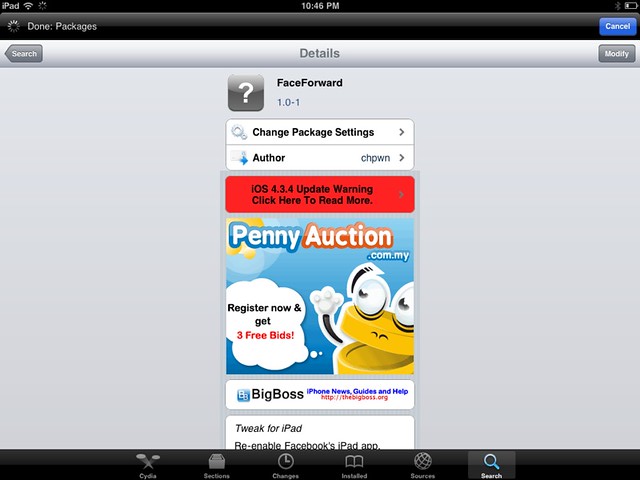
    12. Then go to Cydia again and seach for Faceforward.
    13. Download and install it.
    14. Launch your new Facebook app and you are now in.


    Cydia hack to allow you to login to Facebook.

    It’s a little bit buggy, Page is not working as it crashes but overall it looks good. But if were to compare to MyPad, MyPad seems better than this. Tell me what do you think after trying it.

  • Apple iPad 2 Hands-On At Taylor’s University

    Apple iPad 2 Hands-On At Taylor’s University

    I went to check out the iPad 2 just now. =D

    And click here to read more. Haha.

WP2Social Auto Publish Powered By : XYZScripts.com